Shopify Profit Tracking: How to See Real Profit, Not Just Sales
Shopify shows sales, not profit. How to track real profit per day and per order: product cost, shipping, fees, ad spend and returns, and what to automate.
On this page
- Why sales is the wrong number to watch
- The profit stack for a D2C order
- Step 1: put product costs into Shopify
- Step 2: bring in ad spend every day
- Step 3: add returns in the right month
- Step 4: decide the two views you need
- Step 5: track profit per campaign
- Spreadsheet, app or both?
- Common profit-tracking mistakes
- Frequently asked questions
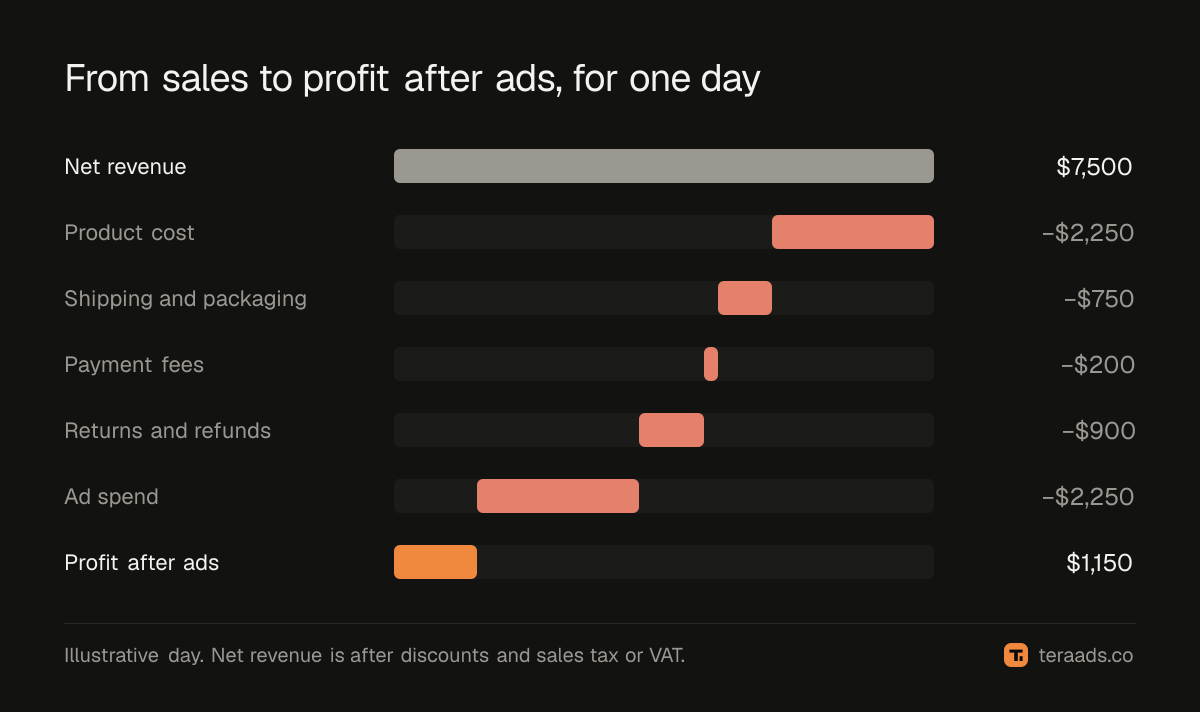
To track real profit on Shopify you need five numbers per order: net revenue, product cost, shipping and payment costs, the ad spend that bought it, and whether it was kept or came back. Shopify's own reports cover sales well and product cost partly, but they don't include your ad spend from Meta and Google, or what returns cost you in shipping. Profit tracking means joining those sources every day, in one place.
Key takeaways
- Sales minus refunds is not profit. Profit is sales minus product cost, shipping, payment fees, ad spend and returns.
- Shopify can store product cost per variant, which gives you gross profit; ad spend and return costs have to come from elsewhere.
- Track profit daily for decisions and by order cohort for accuracy, because returns arrive weeks later.
- Ad spend is usually your largest cost after product cost, so it has to be in the same view as sales.
- Automate the joins; a weekly spreadsheet is fine to start, and almost always abandoned by month three.
Why sales is the wrong number to watch
Most Shopify dashboards lead with total sales. It is the easiest number to collect and the least useful for decisions. Two days with the same $7,500 of sales can be very different:
- Day A: full-price orders, few returns, $1,500 of ad spend.
- Day B: a 20% sale, many returns, $3,500 of ad spend.
Day B can easily lose money while looking identical in the sales report. The only way to see the difference is to take costs off at the order level.
The profit stack for a D2C order
| Line | Where the data lives | Notes |
|---|---|---|
| Gross sales | Shopify | Before discounts |
| Discounts | Shopify | Order and line-level |
| Sales tax or VAT collected | Shopify (tax lines) | Not your revenue; take it out |
| Net revenue | Calculated | Gross minus discounts and tax |
| Product cost (COGS) | Shopify "cost per item", or your own sheet | Set it per variant |
| Packaging | Your rate card | Per order |
| Shipping | Carrier invoices or your shipping app | Outbound, plus return postage |
| Payment fees | Shopify Payments, PayPal or other gateway payouts | Usually 2–3% plus a small fixed fee |
| Ad spend | Meta Ads, Google Ads | Daily, by campaign |
| Refunds, returns, cancellations | Shopify + returns app or carrier | Return postage often isn't in Shopify |
The result at the bottom is often called contribution profit: what is left after every cost that scales with orders. Rent, salaries and software come out after that, monthly.
Step 1: put product costs into Shopify
Shopify lets you enter a cost per item on each product variant, which its reports use for gross profit. If your costs change (new supplier batch, freight), update them, and note the date: historical orders keep the cost recorded at the time. For bundles, set the cost on the bundle variant itself, or your margin will be wrong.
Step 2: bring in ad spend every day
Profit without ad spend is gross profit, which is useful but not what you need to manage ads. Pull daily spend from Meta Ads and Google Ads, by campaign. Be careful with currency and tax: depending on your country, ad invoices may carry VAT or GST, which you may or may not be able to claim back. Pick one rule and apply it everywhere.
Step 3: add returns in the right month
Returns come back days or weeks after the sale, and refunds follow. If the refund isn't recorded against the order, or the return postage is billed separately by your carrier, Shopify keeps counting the full sale. In cash-on-delivery markets such as India, parcels refused at the door (RTO) work the same way, at about a quarter of COD shipments in industry data (coverage of Shipway's ShipNotes report), so pull those outcomes from your shipping partner, such as Shiprocket.
Two rules keep profit honest:
- Use real outcomes, not a flat percentage. Match each refund and return to its Shopify order.
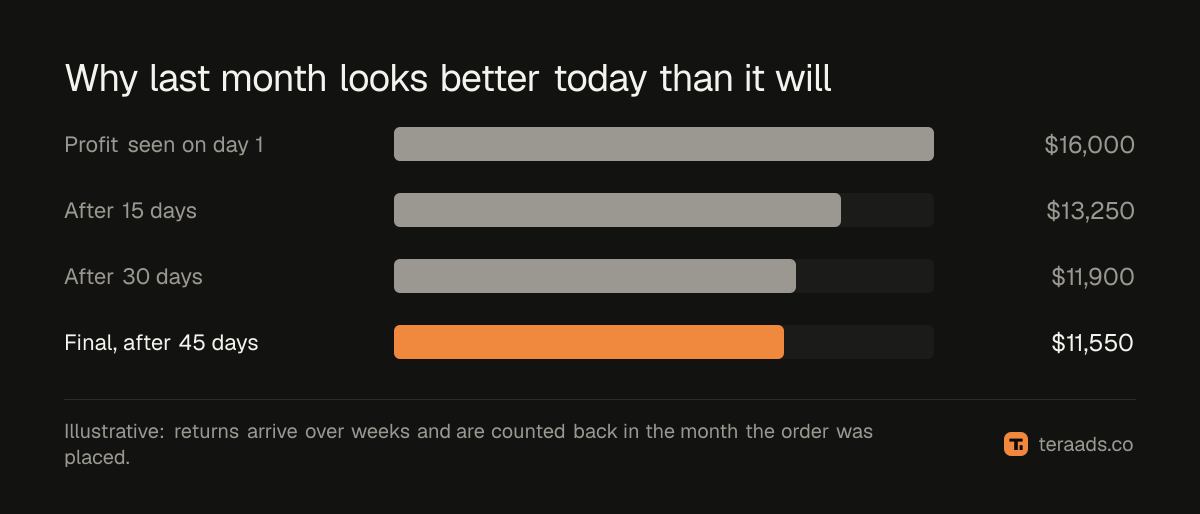
- Count the loss in the month the order was placed. Otherwise last month looks better and this month worse than either really was. The RTO cost calculator shows how to cost a parcel that comes back.
Step 4: decide the two views you need
Daily profit, provisional. Today's orders, today's ad spend, expected costs. It answers "should I change anything today?" It will be slightly optimistic, because today's returns haven't happened yet. Some brands apply their recent return rate as an estimate until real outcomes arrive, and label it clearly.
Cohort profit, final. For each week or month of orders, the profit once returns and refunds are in, usually 30 to 45 days later. It answers "did last month's ads actually make money?" and it is the number to set targets on.
Step 5: track profit per campaign
The total tells you whether the business is healthy. Profit per campaign tells you what to change. Tag every ad link with UTM parameters, join Shopify orders to campaigns, and compare each campaign's kept revenue and margin with its spend. Campaigns that look strong in Ads Manager but weak on kept orders are often winning orders that get cancelled or sent back; the true ROAS guide explains why.
Spreadsheet, app or both?
A spreadsheet works for the first month and teaches you your numbers. It breaks when you want daily updates, per-campaign profit and return costs from your carrier, because each refresh means three or four exports.
Tera Ads is built for exactly this join. It connects to Shopify, Meta Ads, Google Ads and Google Analytics, and shows your store's profit after ad spend, shipping, payment fees and returns on one screen, with every campaign from both ad platforms in one table. New orders appear about a second after checkout; Meta spend updates every 30 minutes and Google every hour. It is free for one business, and you can still export to a sheet when you want to dig in.
Whatever you use, set your break-even ROAS from the same margin numbers, so targets and tracking agree.
Common profit-tracking mistakes
- Leaving sales tax or VAT in revenue. At a 20% VAT rate, as in the UK, it inflates sales by a fifth.
- Forgetting packaging and payment fees. Small per order, large per month.
- Using ad platform revenue instead of Shopify revenue. Platforms count sales differently and double count across channels.
- Ignoring returns. For brands with high return rates it is often the difference between profit and loss.
- Judging a month too early. Wait for returns to settle before calling it.
Frequently asked questions
Does Shopify show profit?
Shopify can show gross profit if you enter a cost per item for each product. It doesn't include your Meta or Google ad spend, or return postage your carrier bills separately, so it can't show profit after marketing on its own.
What is a good profit margin for a Shopify store?
It depends on category and stage. Many healthy D2C brands aim for 10% to 20% of net revenue as contribution profit after ads, but early-stage brands often run lower while they grow.
How do I include returns in Shopify profit?
Match each refund and return to its order, subtract the refunded revenue, and add the return postage and any stock you can't resell. Book it against the month the order was placed.
Should ad spend include VAT or GST?
If you can reclaim the VAT or GST charged by Meta and Google, track ad spend without it. If you can't, include it, because it is a real cost.
How often should I check profit?
Daily for a quick read, weekly for decisions about campaigns, and monthly, once returns are in, for targets and reporting.